Answering the insurer, the board and the grant officer
How to answer the people who ask “is our data safe?” with a page instead of a shrug.
Who this is for. The director or office manager of a shelter or rescue who has to answer an insurance questionnaire, a board question or a grant form about data and security, and has no IT staff to hand it to.
What you will have at the end. A printed yearly checklist you picked from a government list, a free outside check of your public systems, a list of which staff passwords have already leaked, a one-page list of your ten most important systems and what would happen if each failed, and card payments that never touch your computers. Together they answer almost every question an insurer, a board member or a grant officer will ask.
Nothing here is legal, compliance or financial advice. State privacy laws differ, and your insurer’s form is the one that counts. This is how to get organized enough that answering it takes an afternoon.
Walkthrough 1: Pick your yearly checklist
The federal cybersecurity agency, CISA, publishes a short list written for small organizations. Pick it as your checklist, so every question you are asked can be answered with “we follow this one, and here is where we stand”.
-
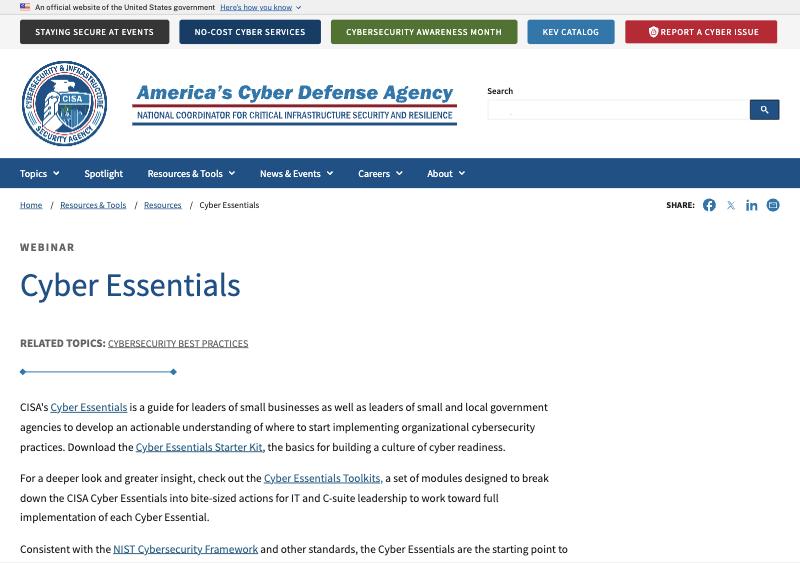
Open the Cyber Essentials page.
-
Download the Cyber Essentials Starter Kit. It is a short PDF. The longer Cyber Essentials Toolkits break each area into actions if you want more.
-
Print the six areas. The kit is organized into six areas: yourself, your staff, your systems, your surroundings, your data, and your crisis response. Print it and keep it in the binder where the insurance paperwork lives.
How you know it worked. You have a printed document with six headings and a list of actions under each, and you can point to it when someone asks what standard you follow.
If an insurer or grant asks for “CIS Controls” by name instead, the basic tier of that list, Implementation Group 1, covers the same ground. You do not need both.
Walkthrough 2: Get a free outside check of your public systems
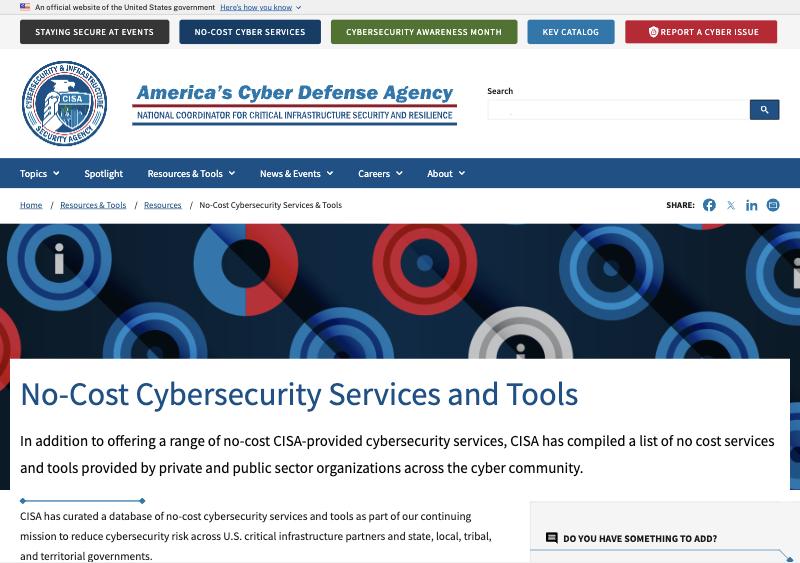
CISA will scan the parts of your organization that face the internet (your website, your email servers) every week and send you a report, free, for as long as you want it.
-
Open the Cyber Hygiene Services page. It sits inside CISA’s longer list of no-cost services and tools, which is worth a look on its own.
-
Read the one-page explainer. CISA’s vulnerability scanning explained says what gets scanned and what the weekly report looks like.
-
Send the sign-up email to vulnerability@cisa.dhs.gov with your organization’s name, your website address, and the name and email of the person who should receive reports. CISA replies with a short agreement to sign.
-
File the first report. The first weekly report arrives by email within about two weeks. Put it in the binder next to the checklist.
How you know it worked. A report from CISA arrives weekly, and the number of findings in it goes down over time as you fix them.
Walkthrough 3: Find out which staff passwords have already leaked
Have I Been Pwned is a free, well-known service that tells you whether an email address appeared in a published data breach. For an organization, it can watch every address at your domain (the part after the @ in your email).
-
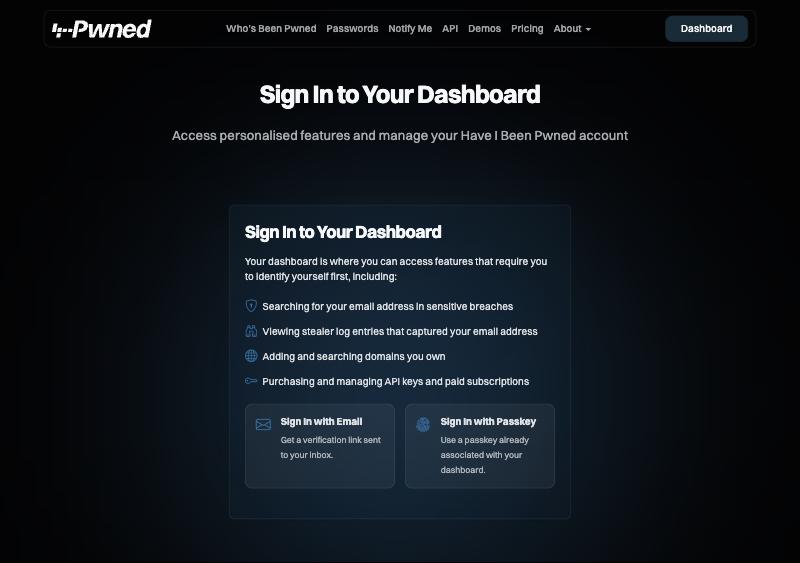
Open the domain search page. It asks you to sign in first.
-
Sign in with your work email. Click Sign in with Email, enter your work address, and click the link in the message they send you.
-
Add your domain. In the dashboard, open the Domains tab and click Add domain. Type your domain, for example
yourshelter.org. -
Prove you own it. The site offers several ways: the easiest is the email check, which sends a message to an address like
security@oradmin@at your domain. If you cannot receive those, ask whoever manages your website to add the short text record they give you. -
Read the list. Once verified, the dashboard shows every address at your domain that appeared in a breach, and which breach. Anyone on the list should change the password they used at that time, anywhere they reused it, and turn on two-step sign-in.
How you know it worked. The Domains tab shows your domain with a green verified mark and a count of affected addresses, even if that count is zero.
Walkthrough 4: Write your one-page list of systems and risks
This is the page the board actually wants. It takes an afternoon and no software.
-
List your systems. Write down the ten or so things your organization could not work without. For most shelters: the shelter-management system, the donor database, the payment processor, email, shared files, payroll, the website, the microchip or licensing database, the cameras, and the building controls.
-
Ask three questions about each. What happens if this is exposed (someone outside sees it)? What happens if it is changed (someone alters records)? What happens if it is unavailable for a week? Write one line for each.
-
Mark the four data types that raise the stakes. Adopter and foster personal details, donor and card information, veterinary records, and cruelty or dangerous-dog case files. Any system holding one of these goes to the top of the list.
-
Rank them. Put the system where the answers were worst at the top. For each of the top five, write one sentence on what you will do about it, who owns that, and by when. Most of the answers are steps from Start here.
-
Date it and put it in the binder. Redo it once a year, in the same month as the checklist.
How you know it worked. A board member can read the page in five minutes and ask a sensible question about it.
Walkthrough 5: Keep card numbers off your computers
If you take card payments for adoption fees or donations, the card industry’s rules (PCI DSS) apply to you. The simplest way to satisfy them is to never hold a card number at all: let your payment processor’s own page or terminal handle it.
-
Find out what you use today. Ask whoever handles donations and adoption fees: when someone pays by card, where do they type the number? If the answer is “into our website”, “into a spreadsheet” or “we write it down and enter it later”, keep going.
-
Switch to the processor’s hosted page. Every major processor, and every donor platform’s built-in processor, offers a checkout page or payment link that they host; their help pages call it a hosted checkout, a payment link or a checkout link. Create one for adoption fees and one for donations and put those links on your website and in your emails.
-
Use the processor’s terminal in person. At the front desk, cards go into the processor’s own card reader, never typed into a computer.
-
Throw away the paper. Shred any forms with card numbers on them and stop printing new ones.
-
Answer the questionnaire honestly. Your processor will send a yearly self-assessment. With hosted pages and their terminal, you qualify for the shortest version, and “not applicable, we never store card numbers” is a true and acceptable answer to most of it.
How you know it worked. No staff member types a card number into any computer you own, and the processor’s yearly form takes you under an hour.
Walkthrough 6: Read a vendor’s security report in ten minutes
You will not produce a security audit report. You will receive them from the companies that hold your data (your shelter software, your donor system), usually called a SOC 2 report. Here is the ten-minute version of reading one.
-
Ask for it. Email the vendor’s support or account contact: “Please send your most recent SOC 2 Type 2 report and bridge letter.” Most send a link that expires or a PDF under a simple agreement.
-
Check the dates. The report covers a period, for example 2025-01-01 to 2025-12-31. The bridge letter should cover the gap from that end date to today. If there is no bridge letter and the period ended more than six months ago, ask.
-
Read the exceptions. Search the PDF for the word “exception”. Each one is a place the auditor found the vendor did not do what it said. Read the vendor’s response next to it.
-
Check the scope. Near the front, the report names the systems it covers. Make sure the product you actually use is on that list.
-
Write two lines in the binder. Vendor name, report period, number of exceptions, and whether you are satisfied. That is your vendor review for the year.
How you know it worked. When the insurer asks “do you review your vendors’ security?”, you say yes and show the two lines.
When the questionnaire arrives
Open the binder. The checklist answers “what standard do you follow”. The CISA reports answer “do you scan your systems”. The breach list and two-step sign-in answer “do you protect accounts”. The one-page risk list answers “have you assessed your risks”. The hosted checkout answers the card questions. The vendor notes answer “do you review third parties”. Whatever is left, write to me with the question copied out, and we will work out the honest answer together. It is free.
What I could not show you a picture of
The steps above use public pages, so I could screenshot each one. Steps inside your own administrator console (turning two-step sign-in on for everyone, setting up backups) depend on which suite you use and are in the next guide, written from the vendors’ own help pages with the exact menu paths.